
Write the website name
Use *.example.com for a whole site, or *keyword* when the domain only needs to contain a word.
Choose how each website opens
Set dns-flow once in your browser, then decide which websites go direct, use a proxy, use private DNS, or get blocked.
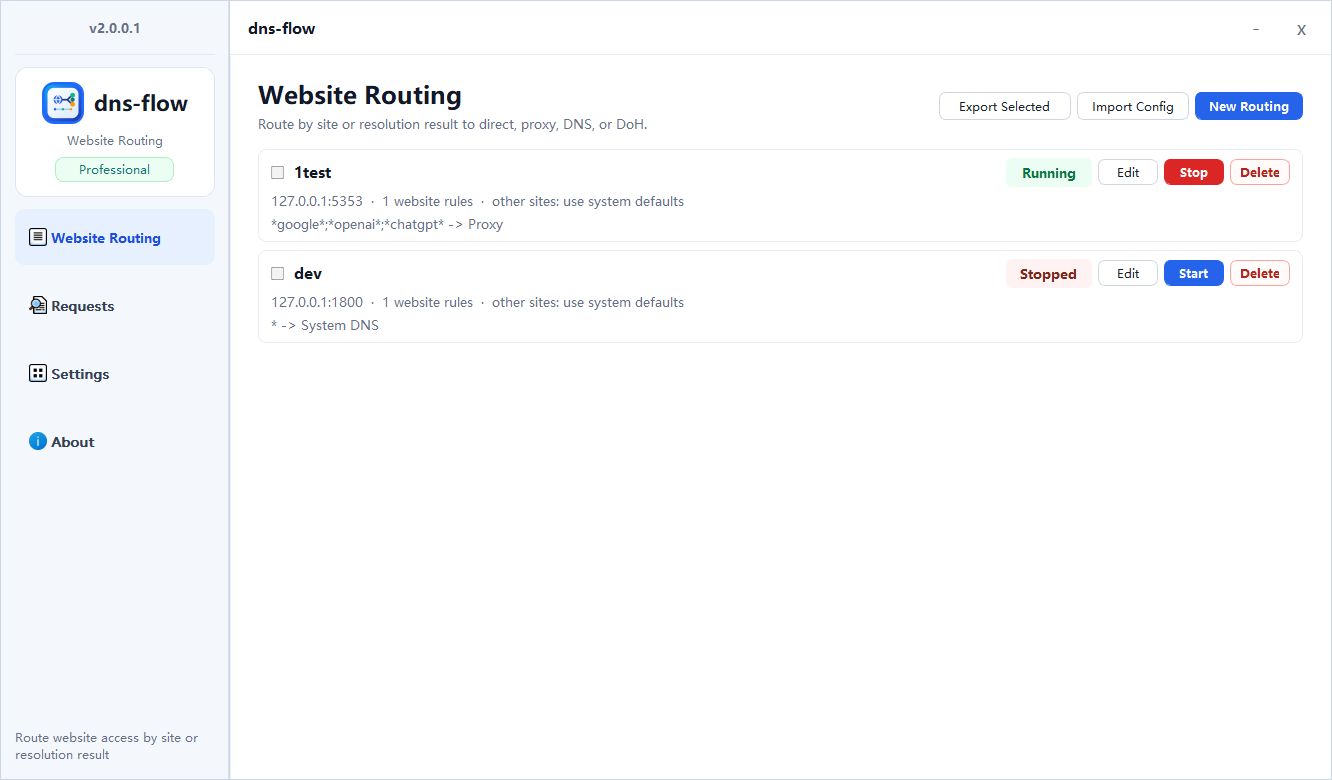
Set the browser to dns-flow once, then manage changes in the app.
Use plain website rules to decide how different sites should open.
Check which rule was used when a website does not behave as expected.
How it works
Create a profile, start it, and point your browser to the local address shown by dns-flow.
Add domains such as *.example.com, then choose direct, proxy, private DNS, or block.
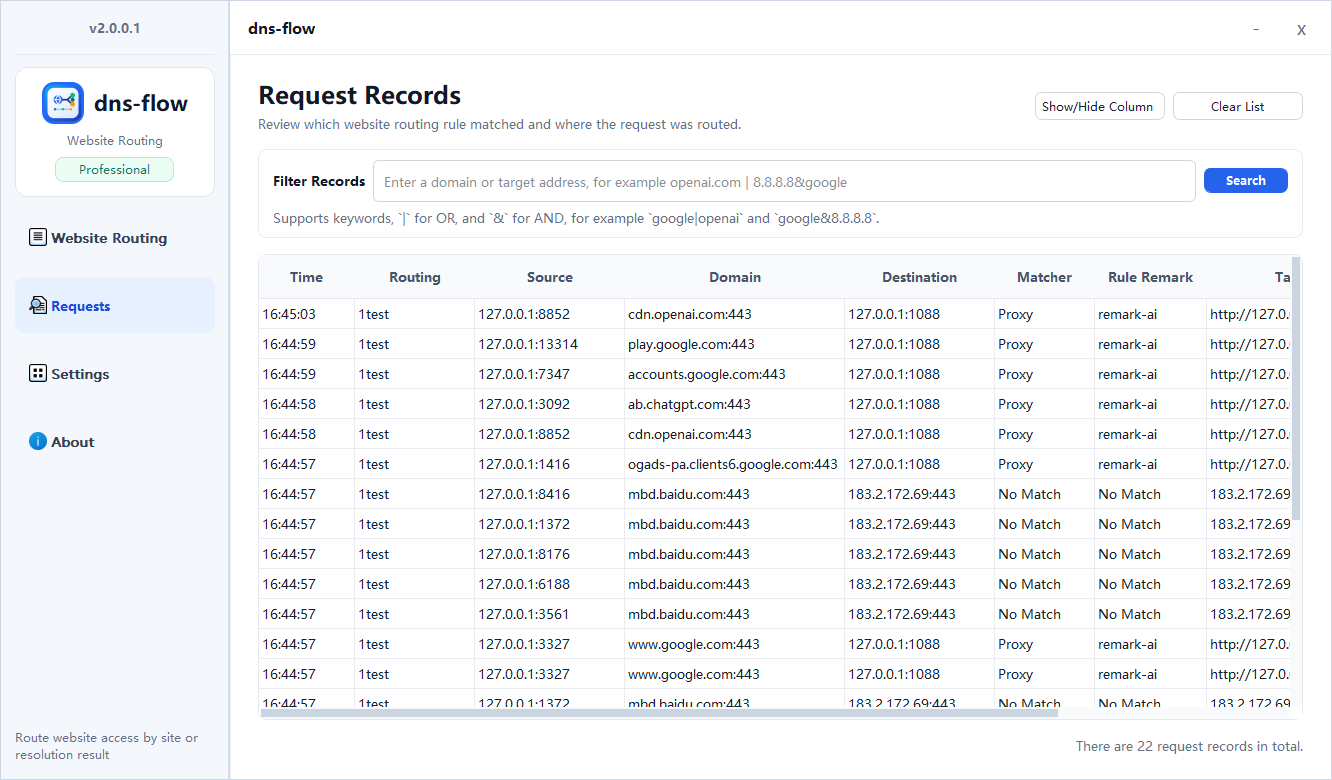
Open the website and use request records to see whether the rule matched.
Rule basics
Use *.example.com for a whole site, or *keyword* when the domain only needs to contain a word.
Pick direct/system DNS for normal access, proxy for selected sites, DoH for private DNS lookup, or block for sites you do not want opened.
The request record tells you which rule matched, so you can adjust the expression without guessing.
Examples
*.company.com
Let all company internal pages use direct or system DNS.
*video*
Send domains containing "video" to a chosen proxy.
ads.example.com
Block an exact advertising or tracking domain.
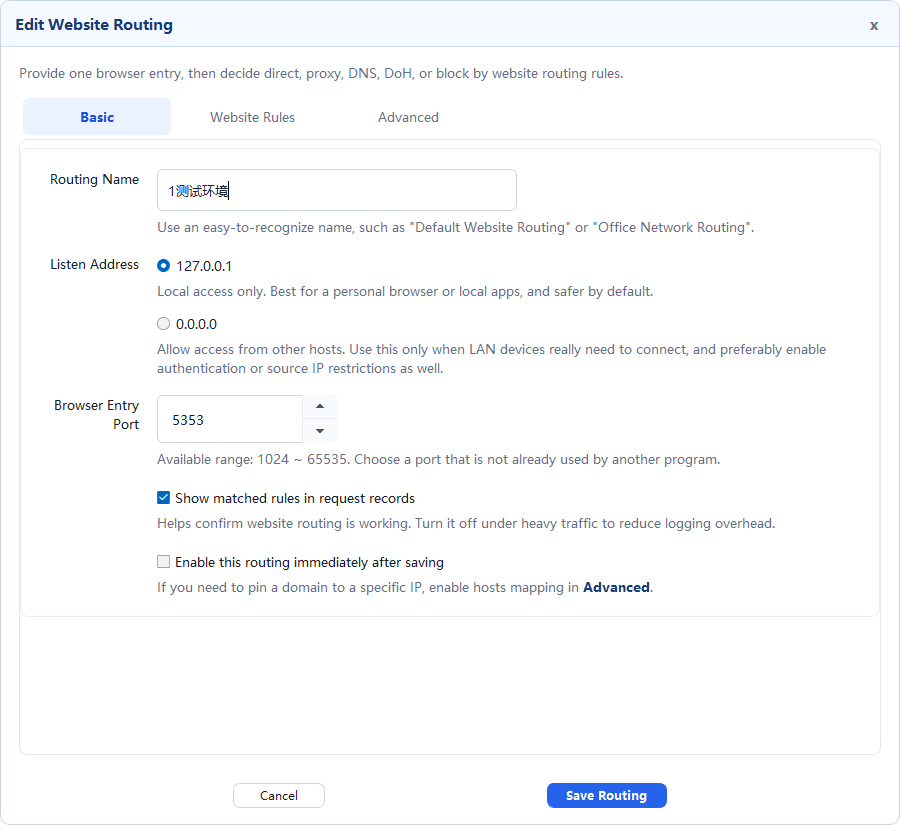
When you need more control
Group websites by domain name and choose a clear action for each group.
For advanced cases, resolve first and continue by country, CIDR range, or private/public address scope.
Keep local network devices reachable through a selected physical adapter when proxy or VPN tools are active.
Diagnostics
The request log shows the domain, profile, matcher, rule remark, target, and status so routing issues are easier to explain.
Screens
Create a profile, add website rules, inspect requests, and adjust settings from one desktop interface.
Download
Download dns-flow from the release page, start a routing profile, then point your browser to the local address shown by the app.